
What Is JavaScript?
JavaScript is the language of the internet. It is commonly confused with Java, but they are two very different languages. As of now, we can build great looking websites, but they don’t do much. JavaScript is what allows our pages to be dynamic - show your name in the top corner to indicate you are signed in, change information on the screen based on what you type in a form, etc.
If we compare a web app to a human body, we can think of HTML as a skeleton, CSS as clothes and accessories, and JavaScript as the muscle.
Warm-Up
Avatar: The Last Airbender Element Training Game (created by Kode With Klossy alumna, Riya Patel!). Choose any element you’d like!
As you play, consider these questions:
- What kinds of information does the game track?
- What information changes over time?
Data Types
Throughout camp, you will learn about several different data types in JavaScript. A data type is a specific kind of information or data. Based on the type of data we write in our code, the program will interpret it differently. In this lesson, we will learn about Strings and Numbers.
Here is a sample CodeSandbox for you to fork and use throughout this lesson → Lesson 10: JavaScript: Data Types Template
Strings
A string is a primitive JavaScript data type. You can think of a string as a series of characters (alpha, numeric, spaces, and special characters) between two quotation marks, like so:
'Hello, World!'

"Hi, coding scholar!"

"✨ 🎩 💖 "
In JavaScript, strings can be either double-quoted (“like this”) or single-quoted (‘like this’).
console.log()
Right now, we can see the strings we type in when we hit enter. However, we won’t always be writing our code in the console, so let’s move to a more realistic way of writing our JavaScript.
In the editor, type the following:
console.log('Hello, World!');
You should see “Hello, World!” appear in the console. This isn’t super exciting right now, but we will build on it.
console.log
In JavaScript,
console.log() is a built-in function that lets you print messages to the console (a tool that developers use to see what their code is doing).It’s like saying, “Hey JavaScript, show me this so I can check it!”
Why use it?
- To see the value of a variable
- To check if your code is running
- To debug (figure out what’s going wrong)
So if you're ever wondering what your code is doing,
console.log() is your best friend!The image to the right will show you how to toggle your console in CodeSandbox if you aren’t seeing the output.
Try-It | Strings and
console.log- Type
console.log("your first name");. Instead of the words "your first name", type your actual name! You do need to include the quotes.
- Output your age.
- Output your full name.
- Output any text you want! Try to use some characters from your keyboard that are not numbers or letters. Make sure your text is enclosed in quotes.
Takeaways
- Strings can hold any type of character, including spaces
- The way we type a string will be the exact way a computer sees it (it won’t assume we meant to capitalize that first letter, catch if we misspell something, etc.)
Did You Know?
JavaScript code will usually run without a semicolon at the end of each line. This is due to JavaScript Automatic Semicolon Insertion. However, it is good practice to learn to use semicolons in order for coding skills to transfer to other languages!
Variables
In most programming languages, including JavaScript, values can be saved to variables. Unlike in math class, where variables are usually just numbers, programming variables can hold all kinds of data. In JavaScript, there are two keywords you can use to declare a variable:
let and const. In this lesson, we'll focus on let and const since they are the modern standard.- Use
constwhen the value won't change. It's short for "constant." This should be your default choice. If you're not sure, start withconst!
- Use
letwhen the value will change later in your program, like a score that goes up or a location that updates.
So how do you choose? Ask yourself: “Will this value ever need to be different?” If no, use
const. If yes, use let.As for
var, it's the older way of declaring variables and you'll likely see it in tutorials or existing code. It works similarly to let, but has some quirky behavior around scoping (how JavaScript decides where a variable can be accessed) that can cause confusing bugs. You don't need to worry about those details yet, but it's good to recognize var when you see it!Below are three variables that help define a nation in the Avatar universe:
let nation = "Air Nomads";
const nationDescription = "peaceful and spiritual";
const ally = "Aang";
To define a variable, we use either
const or let, followed by a descriptive name we choose for the variable. Notice that all of the variables start with a lowercase letter. If you are selecting a variable name that has two words, make the first letter of the second word uppercase. This pattern is called camelCase.After naming the variable, we use the
= sign to show what value the variable will hold. In programming, we refer to the = as the assignment operator rather than the equals sign. It's still frequently called the equals sign, though, so you'll hear it and people will know what you are referring to if you use that terminology.We can now print any of these variables we have defined out to the console. The example below defines three variables, but only one will be logged to the console.
let nation = "Air Nomads";
const nationDescription = "peaceful and spiritual";
const ally = "Aang";

console.log(nation);
//=> "Air Nomads"
Pro Tip
Have you noticed that sometimes lines of code in example are greyed out and start with two forward slashes
//? Those are comments!Comments are a way we can take notes in plain english, or use snippets of code that aren't complete. They appear in a shade less obvious that most lines of code and will not be read by the interpreter! To write a comment in your JavaScript code, start the line with two forward slashes
//. Or, you can use the keyboard shortcut cmd + / on a Mac or ctrl + / on a PC!Try-It | Variables and Assignment
Type your code on the left side of the page, save it, and then observe the results in the console on the right side of the page.
Declare a variable for each prompt below. Then, print each variable to the console.
- A variable called
favoriteColorthat holds your favorite color
- A variable called
petthat holds the name of a pet
- A variable called
friendthat holds the name of a friend
- A variable called
goalthat holds one of your goals. Remember, you can include spaces in a string!
- A variable called
hobbythat holds one of your hobbies
Reassigning Variables and Interpolation
Re-assigning Variables
Sometimes, things in life change! We might change our names, move cities, and our ages will certainly change. In the Avatar world, the characters are constantly traveling across the map. As they move from region to region, we might need to re-assign the
nation variable to track their current location.In JavaScript, variables declared with
let can be re-assigned. In other words, their value can change. Notice that back when we declared nation, we used let instead of const. That was intentional! Using let signals that this value is allowed to change. If you had used const, JavaScript would throw an error the moment you tried to reassign it. Try it yourself and see what happens! Here is the syntax:// Declare the nation variable and assign it to "Air Nomads" let nation = "Air Nomads"; console.log(nation); //=> "Air Nomads" // Re-assign the nation variable to "Fire Nation" nation = "Fire Nation"; console.log(nation); //=> "Fire Nation"
Notice that when we re-assign a variable, we do not use
let or const again. We simply write the variable name on its own and assign it a new value.What if I use
const by accident? Try changing let to const in the example above and see what error you get. Reading error messages is a real developer skill, and this is a safe place to practice it!Interpolation
We can also insert variable data into a longer string. This is called interpolation:
let nation = "Air Nomads";
const nationDescription = "peaceful and spiritual";
const ally = "Aang";

console.log(`Welcome to the ${nationDescription} ${nation}! Once you master this training path, you’ll work alongside powerful allies like ${ally}.`);
//=> Welcome to the peaceful and spiritual Air Nomads! Once you master this training path, you’ll work alongside powerful allies like Aang.
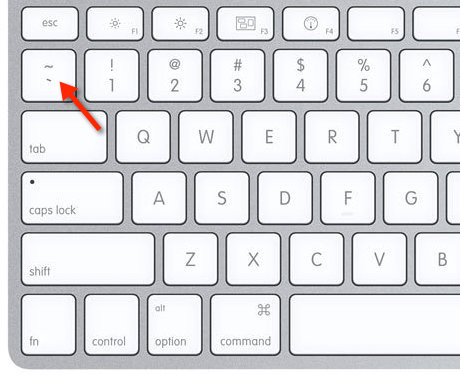
Make sure to use the backticks when you are using string interpolation (image below); it will not work with regular single or double quotes.
Try-It | Interpolation
If you have the strings "Karlie" and "Kloss" in the following variables:
  const first = "Karlie";
  const last = "Kloss";
Use string interpolation to complete the following:
- What code can you write to output the string "KarlieKloss"?
- What code can you write to output the string "KlossKarlie"?
- What code can you write to output the string "Karlie Kloss"?
- What code can you write to output the string "Kloss Karlie Kloss Karlie"?
- What code can you write to output the string "Karlie rocks!"?
🤖 AI Connection
How might interpolation be used in the code of a real website? Brainstorm ideas and/or ask an AI tool to provide examples.
Numbers
Numbers are another primitive JavaScript data type. Unlike strings, which store text, numbers allow us to perform math and count things. This is perfect for tracking stats in a game!
For example, mastering the elements in the Avatar world is messy work! Let’s use numbers to track stats from a skills training session. We need variables to count your total attempts, but since beginners often miss their target, we also need a variable to track collateral damage. We’ll use the variable
cabbagesDestroyed, a nod to the unlucky merchant whose cart gets smashed in almost every episode.let attempts = 0; let cabbagesDestroyed = 0; // A running joke in the series!
We can also re-assign variables that store numbers. In this example, we need to update the
attempts count every time the character tries a move.console.log(attempts); //=> 0 // The line below re-assigns points to its previous value (0) plus 1. attempts = attempts + 1; console.log(attempts); //=> 1 // The line below re-assigns points to its previous value (1) plus 1. // It is a shortcut that does the exact thing as the example above! attempts += 1; console.log(attempts); //=> 2
Think About It: Write It Down
Incrementing numbers like what we just looked at above is something developers do very frequently. Brainstorm some examples of numbers incrementing in real apps that you use.
Open the toggle to compare your ideas with some examples!
- On a user's birthday, an app should increment their age
- Social media apps use incrementing to keep track of the number of likes, replies, followers, etc.
- Apps that involve scheduling - calendar events, flights, live video classes, etc. usually have a countdown timer to keep the user informed on the amount of time until something will happen
Again, as we did with strings, we can interpolate with variables that store numbers.
const element = "Water";
cabbagesDestroyed = 3;

console.log(`Great work! You mastered the ${element} Whip technique after ${attempts} attempts, but you accidentally destroyed ${cabbagesDestroyed} cabbage carts.`);
JavaScript supports the same math operations you already know from class. Here's a quick reference:
Operator | Name | Example | Result |
+ | Addition | 3 + 5 | 8 |
- | Subtraction | 18 - 8 | 10 |
* | Multiplication | 4 * 3 | 12 |
/ | Division | 12 / 2 | 6 |
% | Modulo (find the remainder) | 10 % 3 | 1 |
** | Exponentiation | 2 ** 3 | 8 |
The first four probably look familiar. The last two are less common but good to know:
- Modulo returns the remainder after dividing. So
10 % 3gives you1because 3 goes into 10 three times with 1 left over.
- Exponentiation raises a number to a power.
2 ** 3is the same as 2³, or 2 × 2 × 2.
Don't worry about memorizing all of these today! The important thing is knowing they exist so you can reach for them when you need them We can also use parentheses, and the Order of Operations rule applies here as well!
(3 + 2) * 8
//=> 40
We can also use math on variables if those variables hold numbers.
const kyoshiWarriors = 42;
const villagesToDefend = 12;
const avgSquadSize = kyoshiWarriors / villagesToDefend;

console.log(avgSquadSize);
//=> 3.5

console.log(`The Kyoshi Warriors are brave, but they can't be everywhere at once. We have ${kyoshiWarriors} warriors available to protect ${villagesToDefend} different Earth Kingdom villages. That means we can deploy an average squad size of ${avgSquadSize} warriors per village!`);
//=> "The Kyoshi Warriors are brave, but they can't be everywhere at once. We have 42 warriors available to protect 12 different Earth Kingdom villages. That means we can deploy an average squad size of 3.5 warriors per village!"
Try-It | Numbers & Operators
Use the same CodeSandbox project from previous try-its. You may need to comment out your previous code. Write code to find the average of the four numbers below:
  const a = 12;
  const b = 65;
  const c = 31;
  const d = 98;
Click here for Medium Practice 🌶🌶
Find the answer to this problem using JavaScript. On average, there are 47.5 scholars at each Kode With Klossy camp this year. If there are 25 camps taking place, how many scholars are attending in total? Print your answer to the console in a complete sentence.
Click here for Spicy Practice 🌶🌶🌶
Modify your code to round the total number of scholars to the nearest whole number. Print the new number of scholars to the console in a complete sentence.
🤖 AI Connection
Tackling the Spicy Challenge? Ask an AI tool for information about how to round numbers in JavaScript!
Practice | JavaScript: Data Types
Create a profile for any character you like. It could be a superhero, a cartoon character, a historical figure, or even yourself.
You will need to define their Name and Role (e.g., "Firebender", "Point Guard", "Pop Star"). Then, pick two number stats that describe them (like "Strength", "Speed", "Creativity", or "Cuteness") and use math to calculate a total score. Finally, print it all out in a cool card format!
- Define your variables:
- Create a variable for
characterName(String) - Create a variable for
characterRole(String - e.g. "Ninja", "Chef", "Athlete") - Create two variables for stats (Numbers - e.g.
strength,speed,charm,cookingSkill) - Create a variable for
specialMove(String)
- Do some math! Create a new variable called
totalPower(or similar) that adds your two stat variables together.
- Use string interpolation to output your character’s "Trading Card” to the console. Update the variable names inside the
${}to match the ones you created above!
const characterProfile = `
================================
| NAME: ${characterName}
| ROLE: ${characterRole}
| ------------------------------
| Stat 1: ${stat1}
| Stat 2: ${stat2}
| TOTAL POWER SCORE: ${totalPower}
| ------------------------------
| Signature Move: "${specialMove}"
================================
`;

console.log(characterProfile);
🌶️ Spicy Challenge: Add a boolean variable called
isLegendary and assign it the appropriate value!For a summary of this lesson, check out the 9. JavaScript: Data Types One-Pager!